
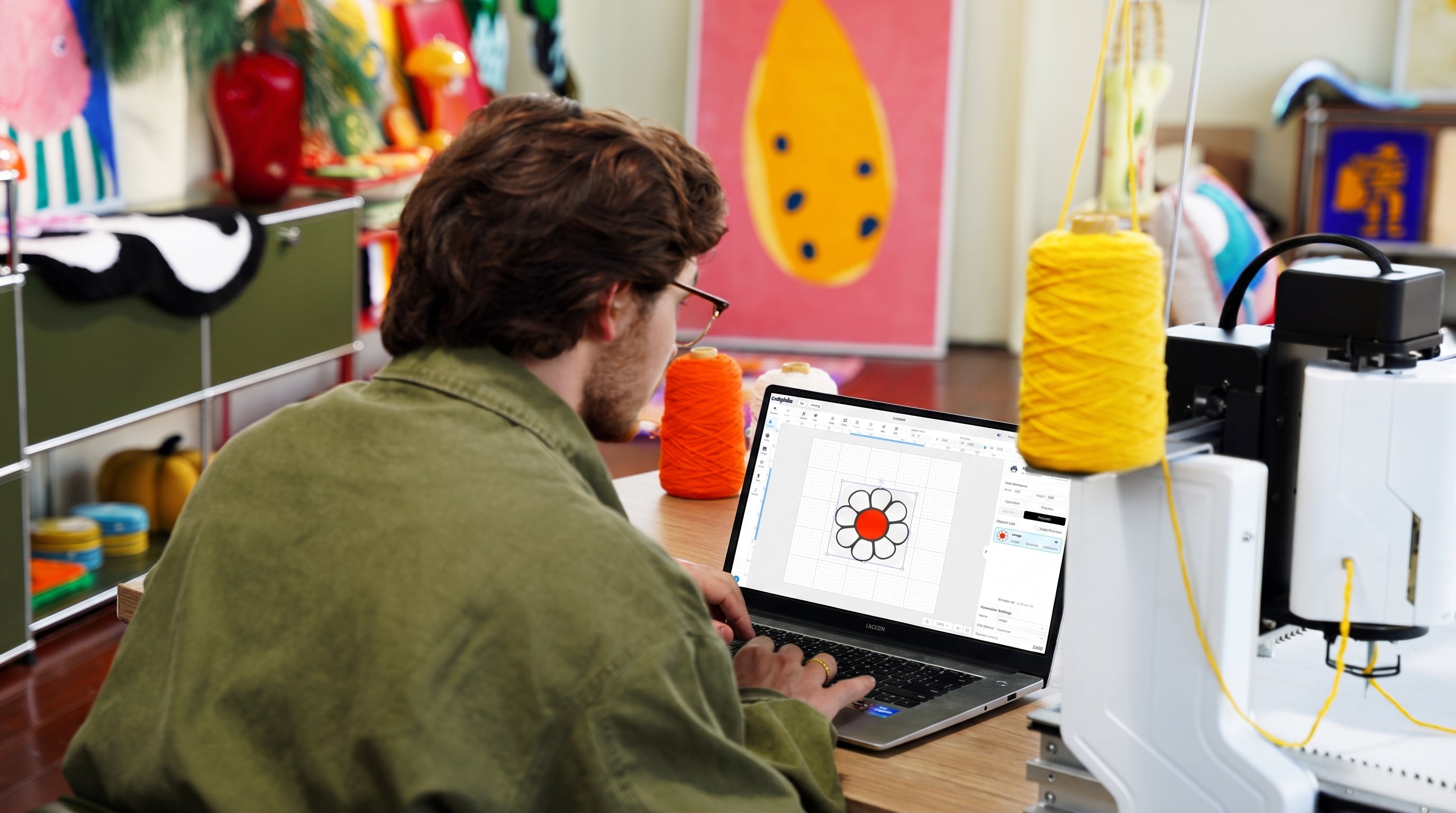
Yes. All of it, free, on Windows and macOS.
The design side of Studio has nothing to do with what tufts the yarn. You bring in an image, work it into something tuftable, and see the path drawn over it before the first stitch goes in — and none of that changes depending on whether there's a gun in your hand or a machine on your table.
That's a deliberate choice, and this post explains what the software does and why we didn't lock it to our own hardware.
A picture isn't a tufting pattern
Anyone who has tufted from a photo knows this already. People have worked out their own ways around it — photo editors, posterise filters, AI prompts — and the workarounds hold up well enough. What they're all reaching for is the same thing: an image has to change before it can be tufted.
Detail only survives down to a point. A tufted stitch is as wide as the yarn it's made from, so anything finer than that has nowhere to go — and where the limit falls depends on your yarn and the size of the piece. Past it, thin lines drop out, small gaps close, and a gradient that looked soft on screen has to break into separate areas of colour once it's yarn.
Which means the image you saved and the image you should tuft are usually two different images: fewer colours, bigger areas, edges that still hold at the size you're actually making.
Makers who've done a few pieces sort this out in a photo editor before they go near the cloth. Newer tufters find out halfway through a colour block.
Turn your image into something you can tuft
Load a JPG, PNG or BMP and work it into a tufting pattern.
Studio separates the image into colour layers and leaves the decisions with you:
- Merge two shades that sit too close together to read as separate yarn
- Hide a layer you don't want in the piece
- Swap a colour for a yarn you've actually got on the shelf
- Clean up automatically — specks too small to be worth a yarn change get cleared out, gaps close, edges smooth
All of it happens at the real size of the piece, in millimetres. So the decisions get made against the space you've actually got rather than against a screen — a detail that reads fine at 700 mm may be a smudge at 300 mm, and you find that out now rather than later.
Working areas you use often can be saved along with your settings, and templates can be shared.
Start from a prompt instead of a photo
If you don't have an image to begin with, Studio has AI generation built in. Describe what you want, and what comes out goes through the same colour separation and path steps as anything else.
Some people have been doing a version of this by hand in ChatGPT, and it works. The difference here is where the result lands: directly in a workspace that already knows your piece size, your palette and your yarn. Nothing has to be re-imported, re-cropped or re-guessed.
The AI features are the one part that needs an internet connection. Colour separation and path generation run entirely on your own computer.
See the path before the first stitch
Draw the pattern onto your cloth and you've got the colour boundaries. The route through them is still up to you.
Which direction to run a large block. How far apart to keep the rows. Where to start a curve so the last pass doesn't leave a gap. Those get decided while you're working — and you find out whether you decided right once the block is already full.
Outline first, then fill: everyone knows that part. Working out what it actually means on the design in front of you is where it gets vague.
Turn on path preview and it's there on your own image, block by block: the outline, the fill direction, the row spacing. Row spacing and fill spacing both adjust, so you can set the coverage your yarn needs and see what it gives you while the cloth is still bare.
None of it is fixed, either. Trace your own outlines, add paths, adjust the generated ones — anything you draw merges into the current layer on its own.
Studio will also play the whole run back, first stitch to last, so a complex design can be watched through once before any yarn goes into it.
Why it isn't locked to our machines
Every tufter faces the same two problems before any yarn moves: an image that needs to become tuftable, and a path that needs to be worked out. Those problems don't care what's doing the tufting.
Tufting is also a young craft, and the tooling around it is thin. Most people are working in photo editors that were never built for this, guessing at what will survive at yarn scale, and finding out at the frame. That's a gap in the craft, not a gap in our product line.
So Studio has a device panel, but nothing before the point of sending a job goes through it. Set the canvas to whatever your frame is and the rest works identically — with a gun in your hand or a CF05 on the table.
We'd rather the craft had good software than that we had exclusive software. If it makes your rugs better and you never buy a machine from us, that's a fine outcome.
When you can get it
Studio releases alongside the first machine shipments, and the Craftphilia Studio page is where the download will appear. Machine owner or not — once it's up, it's yours to install.
There's more coming after that. We're building a creator platform for sharing designs and templates, and we're still improving the path algorithms.
We'll post here when the download goes live. Our community group is the fastest place to hear about it, and a good place to tell us what you'd want the software to do next.
Frequently asked questions
Do I need a Craftphilia machine to use Studio?
No. Colour separation, palette editing, AI generation, path generation and preview all work with no machine connected. If you tuft with a gun, you can use all of it.
What does it cost?
Nothing. It's free, updates included, on Windows and macOS.
I use a gun, not a machine. What working area should I set?
Whatever your frame is. You set the canvas in millimetres, so match it to the cloth you've actually got stretched. The machine presets are only there for people running a CF05 or CF07.
Does it need an internet connection?
Only for the AI generation features, which call out to third-party models. Colour separation and path generation run locally on your own computer.
What image formats does it take?
JPG, PNG and BMP.
Can I edit the path it generates?
Yes. Adjust the generated paths, trace your own outlines, or draw new ones — anything you add merges into the current layer automatically.
Is there anything to help me get started?
Yes. Beginner tutorials and onboarding guides are being put together alongside the release.
Share:
What Is Rug Finishing? The Step Nobody Tells Beginners About
How to Carve Clean Edges in a Tufted Rug